
How to Remove an eSIM on iPhone (iOS Step-by-Step)

You can remove an eSIM from your iPhone at any time, but it’s important to do it only when you no longer need it or when it’s no longer active.
When should you remove an eSIM?
1. Your data plan has expired
If your eSIM no longer has an active data package, it’s safe to delete it from your device.
2. You don’t plan to use it again
Some eSIMs are single-use and cannot be recharged. Once used, they can be removed.
3. You’re installing a new eSIM for the same destination
Each new eSIM is installed separately. Removing old ones helps avoid confusion between multiple profiles.
Important:
If your eSIM still has active data, do not delete it. Removing it may result in losing access to your remaining data.
How to remove an eSIM on iPhone
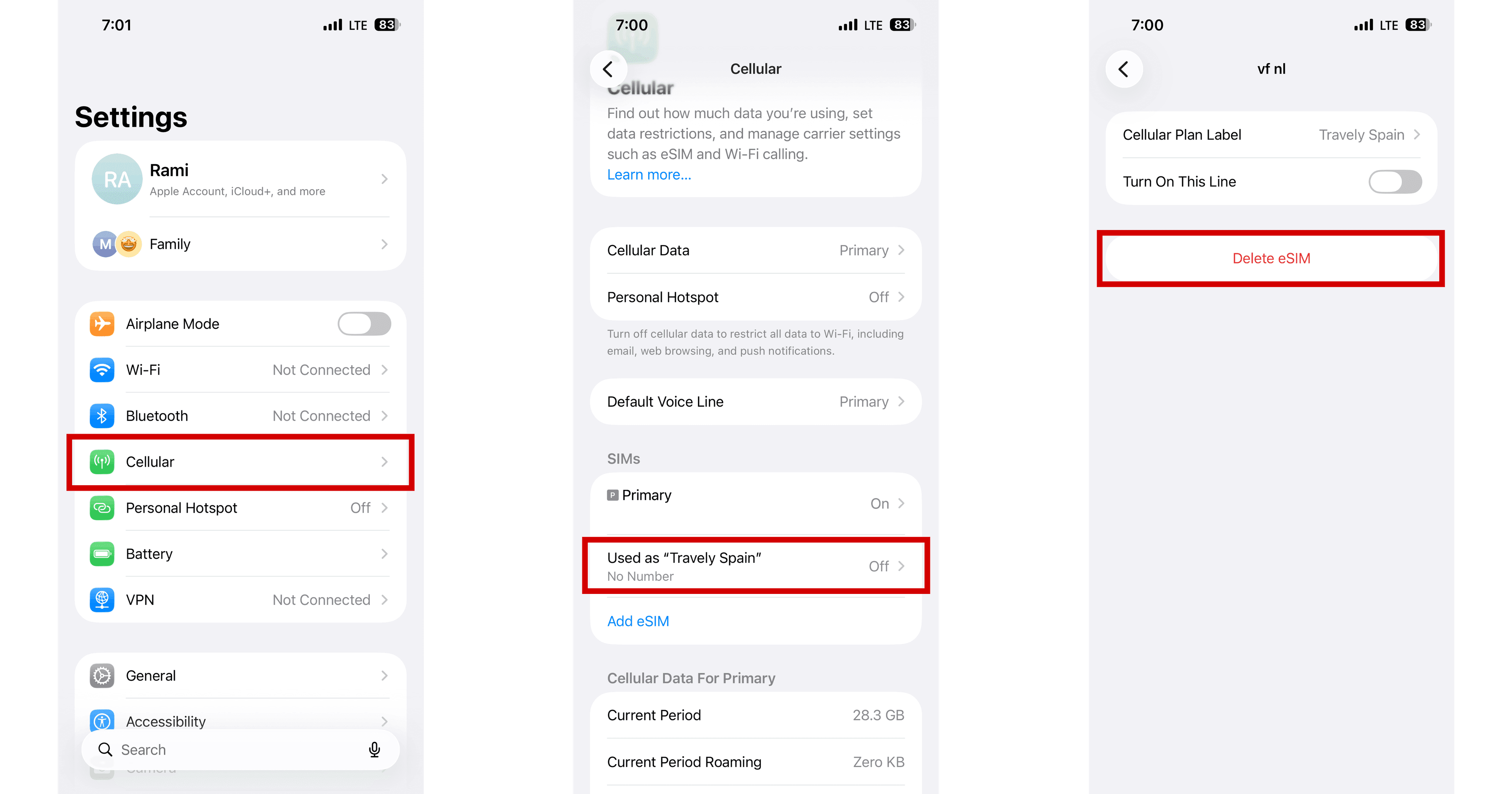
- Open Settings
- Tap Cellular
- Select the eSIM you want to remove
- Tap Delete eSIM
Remove “No SIM” or “No eSIM” message
After deleting an eSIM, your iPhone may still show an inactive line.
To clear it:
- Tap the line labeled No SIM or No eSIM
- A message will appear saying Line No Longer Available
- Tap Update Contacts
This will fully remove the old eSIM from your device.
If you need help managing your eSIMs, Travely eSIM support is available to assist you anytime.