
How to Set a Mobile Data Limit on Android? (Avoid Unexpected Data Usage)
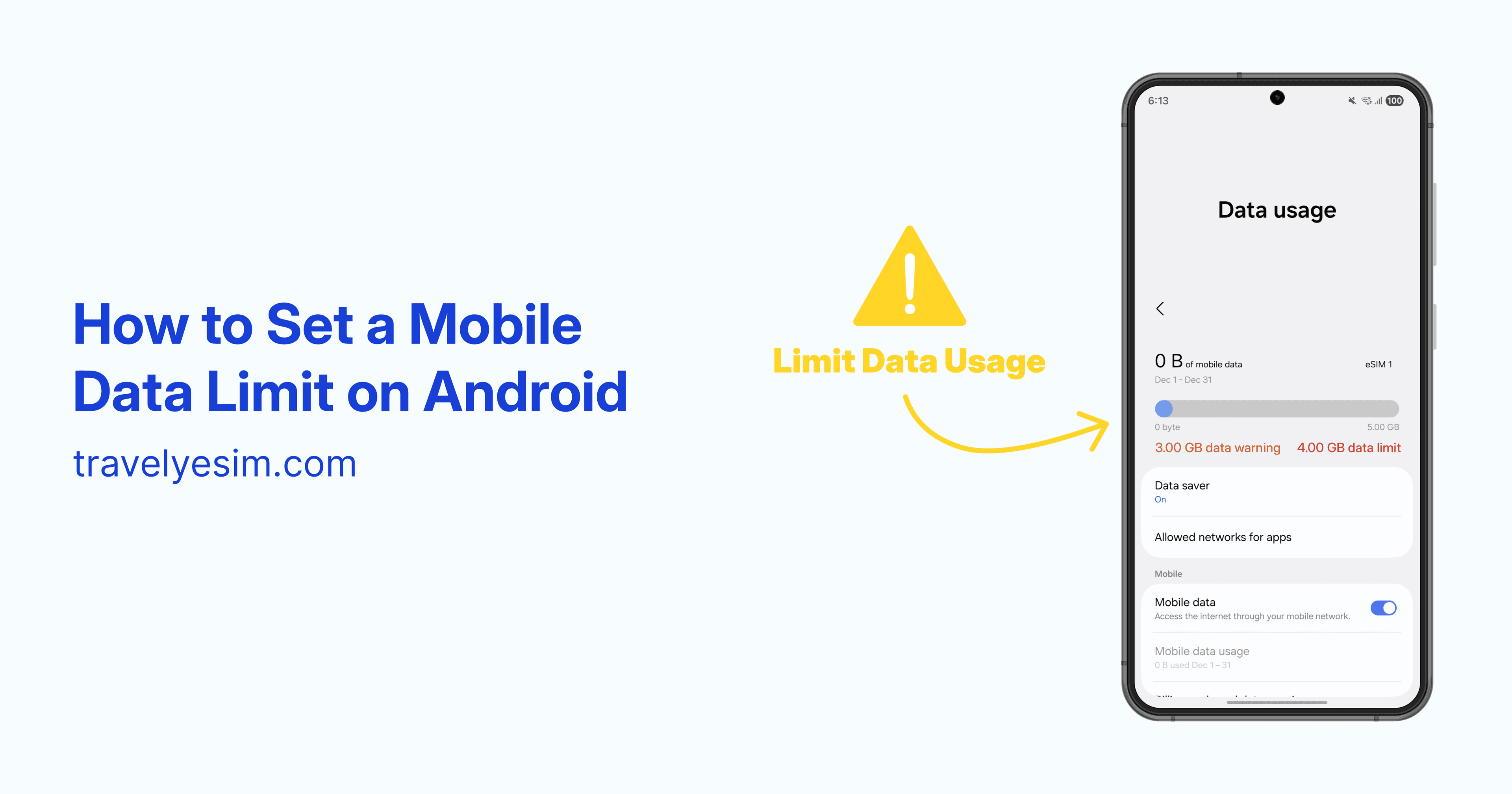
When you’re traveling with an eSIM, keeping track of your data usage is important, especially if you’re using navigation apps, social media, or hotspot features.
The good news? Android lets you set a mobile data limit so you don’t accidentally burn through your plan.
In this guide, you’ll learn how to set data warnings and hard limits on Android phones, including Samsung Galaxy and Google Pixel devices. This works perfectly with travel eSIMs like Travely eSIM.
Why You Should Set a Data Limit When Traveling
Setting a data limit helps you:
- Avoid running out of data unexpectedly
- Control background app usage
- Get a warning before your data is almost used
- Automatically stop mobile data when the limit is reached
This is especially useful when you’re using a fixed-data travel eSIM (for example, 1GB, 3GB, 5GB, 10GB, or 20GB).
How to Set a Data Limit on Samsung Galaxy Devices
Samsung phones make it easy to track and limit mobile data usage.
Step-by-step instructions:
- Open the Settings app
- Tap Connections
- Tap Data usage
- Make sure Mobile data is turned ON
- Tap Billing cycle and data warning
Set your billing cycle
- Tap Start billing cycle
- Choose a date that matches the day you activate your Travely eSIM (usually your arrival date)
Set a data warning
- Enable Set data warning
- Enter a number slightly lower than your plan (e.g. If your eSIM has 10 GB, set the warning at 8 GB)
Set a hard data limit (recommended)
- Enable Set data limit
- Enter a limit value (e.g. 9 GB for a 10 GB plan)
- Your phone will automatically turn off mobile data once the limit is reached
This prevents any accidental overuse and helps your eSIM last exactly as planned.
How to Set a Data Limit on Google Pixel Devices
Google Pixel phones use a slightly different menu, but the result is the same.
Step-by-step instructions:
- Open the Settings app
- Tap Network & Internet
- Tap SIMs
- Select your eSIM
- Make sure Mobile data is turned ON
- Tap Data warning & limit
Set your usage cycle
- Tap Mobile data usage cycle
- Set the date based on when you activated your eSIM
Add a data warning
- Enable Set data warning
- Enter a warning value (e.g. 8 GB for a 10 GB plan)
Add a data limit
- Enable Set data limit
- Enter a limit value (e.g. 9 GB for a 10 GB plan)
- Mobile data will stop automatically when you reach the limit
Helpful Tips to Save Data While Traveling
- Turn off background data for unused apps
- Use Wi-Fi for updates and cloud backups
- Download offline maps (Google Maps works great)
- Avoid auto-playing videos on social apps
When paired with a reliable travel eSIM like Travely eSIM, these small steps can significantly extend your data usage.
Does This Work with Travely eSIM?
Yes, 100% compatible. Travely eSIM works like a regular mobile data SIM, which means Android’s built-in data tracking and limits work seamlessly.
Setting a data warning ensures you:
- Stay in control
- Know exactly when to top up or buy another plan
- Travel stress-free without surprise data loss
Need Help?
If you have any issues setting up your data limit or activating your eSIM, Travely eSIM support is always here to help. We’re happy to guide you step by step.