
11 WhatsApp Text Tricks to Format Messages
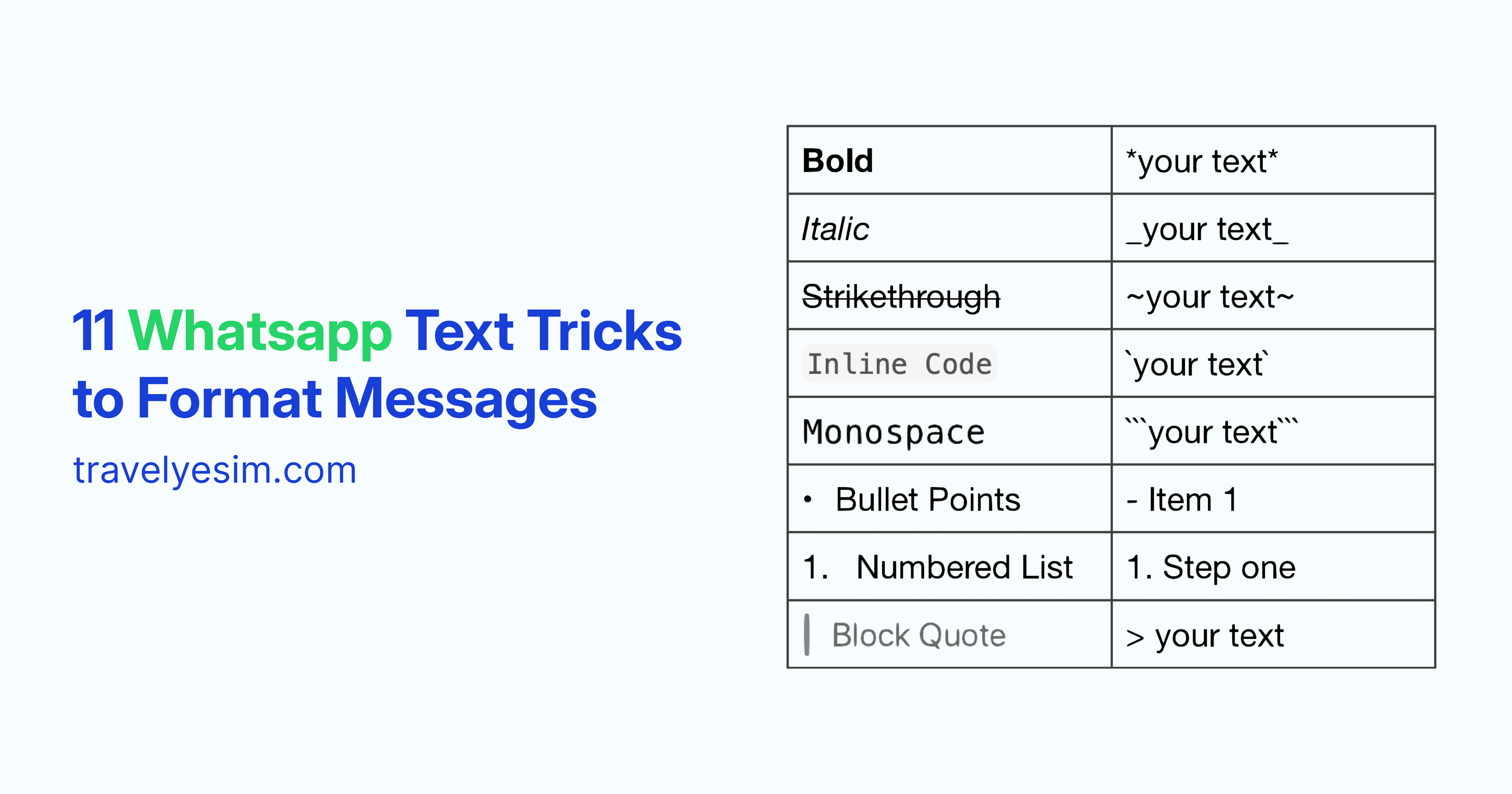
WhatsApp keeps things simple. No custom fonts, colors, or flashy effects. But it does include built-in text formatting tools that most people don’t fully use.
These tricks help you highlight important information, organize messages, and make your chats easier to read, especially useful when sharing travel details or instructions.
Why WhatsApp Keeps Text Simple
WhatsApp limits formatting on purpose:
- Works on all devices without issues
- Loads fast, even on slow connections
- Keeps messages easy to read
- Reduces spam and abuse
Still, you have enough tools to make your messages stand out.
1. Make Text Bold
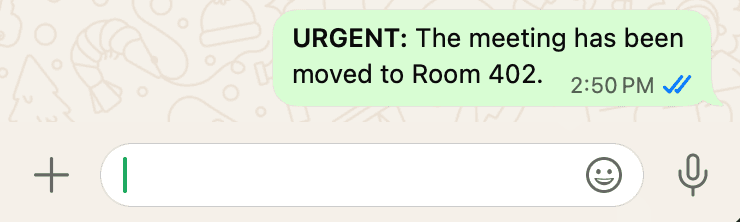
Use bold for important info.
Type:*your text*Example: *URGENT:* The meeting has been moved to Room 402.
2. Add Italics
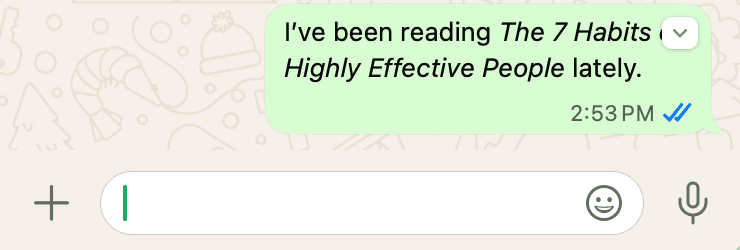
Good for emphasis or tone.
Type:_your text_Example: I’ve been reading _The 7 Habits of Highly Effective People_ lately.
3. Use Strikethrough
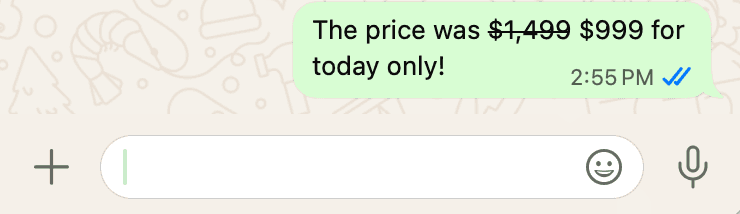
Show edits or corrections.
Type:~your text~Example: The price was ~$1,499~ $999 for today only!
4. Use Inline Code
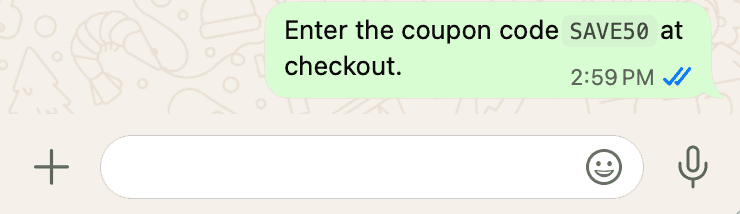
Subtle highlight for short text.
Type:`your text`Example: Enter the coupon code `SAVE50` at checkout.
5. Use Monospace
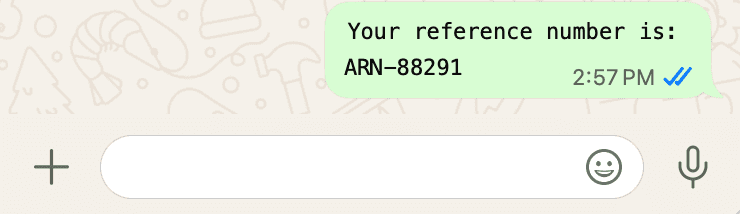
Gives a technical or clean look.
Type:```your text```Example: ```Your reference number is: ARN-88291```
Useful for: codes, addresses, structured info.
6. Create Bullet Points
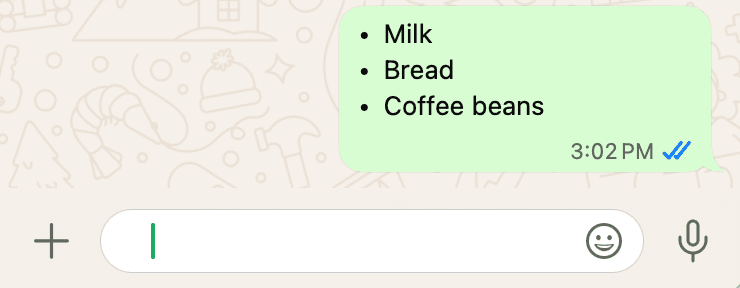
Organize lists clearly.
Type:
- Item 1
- Item 2Or:
* Item 1
* Item 2Example:
- Milk
- Bread
- Coffee beans
7. Create Numbered Lists
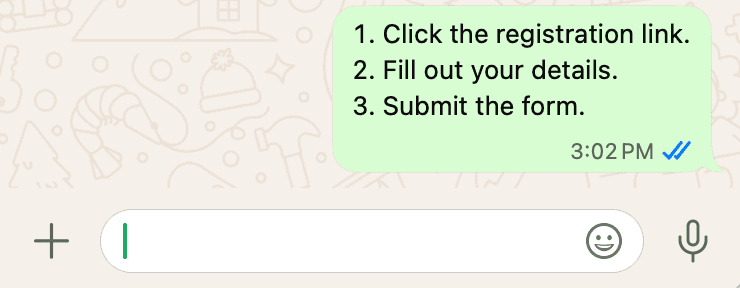
Perfect for steps or instructions.
Type:
1. Step one
2. Step twoExample:
1. Click the registration link.
2. Fill out your details.
3. Submit the form.
8. Use Quote Format
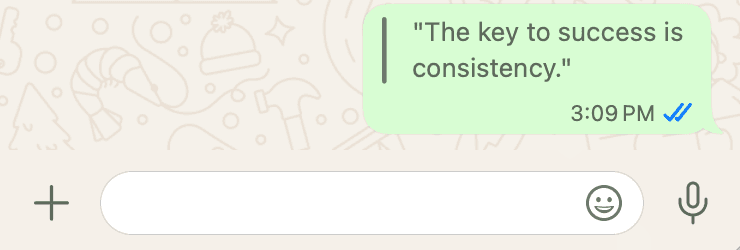
Highlight important messages or replies.
Type:> your textExample: > "The key to success is consistency."
9. Combine Formatting
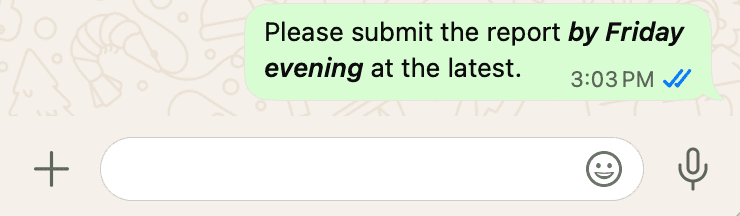
You can mix styles together.
Example: Please submit the report *_by Friday evening_* at the latest.
This creates bold + italic text.
10. Change Text Size (Device Settings)
You can’t change text size per message, but you can adjust it globally:
Go to:
iOS (iPhone): Settings → Display & Brightness → Text Size
Android: Settings → Chats → Font Size
Options: Small, Medium, Large
11. Use External Font Generators
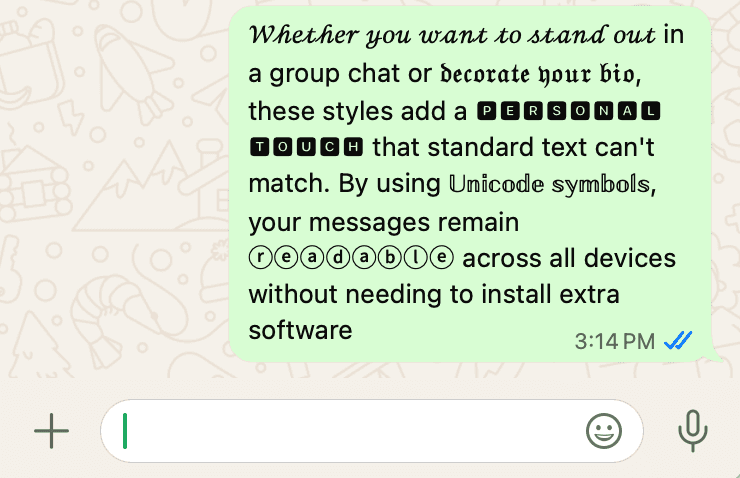
If you want different styles, you can use Unicode text generators online.
Steps:
- Enter your text on a generator website (Glyphy, Fancy text generator, Fonts for WhatsApp)
- Copy the styled version
- Paste it into WhatsApp
Note: Not all styles display perfectly on every device.